
Tutorial

Tutorials Overview

Use short vibrations delivered through bone-conduction earphones every five minutes to bring your attention back to the present moment. This can help maintain focus and support mindfulness practice.

Tutorial 1

Trigger a beat every 5 minutes

How to configure a Beat sound source to produce a short vibration every five minutes.

View this tutorial

Tutorial 2

Play a tone every 5 minutes

How to configure a Tone sound source to play a short sine wave every five minutes.

View this tutorial
Tutorial 1: Trigger a beat every 5 minutes

This tutorial shows how to build a configuration from scratch using Deflekt's Beat sound source to trigger a short vibration once every 5 minutes.

A short vibration delivered every five minutes acts as a gentle reminder to return your attention to the present moment. It briefly interrupts deep focus and redirects awareness toward bodily sensation, supporting concentration and mindfulness.

What happens after setup

  • When you press Play, a beat vibration is received through the bone-conduction earphones every 5 minutes.
  • The Tempo and Interval values let you precisely control the timing between vibrations.
  • You can later customize the interval (for example: 10 minutes, 30 minutes).

Values used in this tutorial

Parameter Value
Step sequencer Only step 1 ON (steps 2–16 OFF)
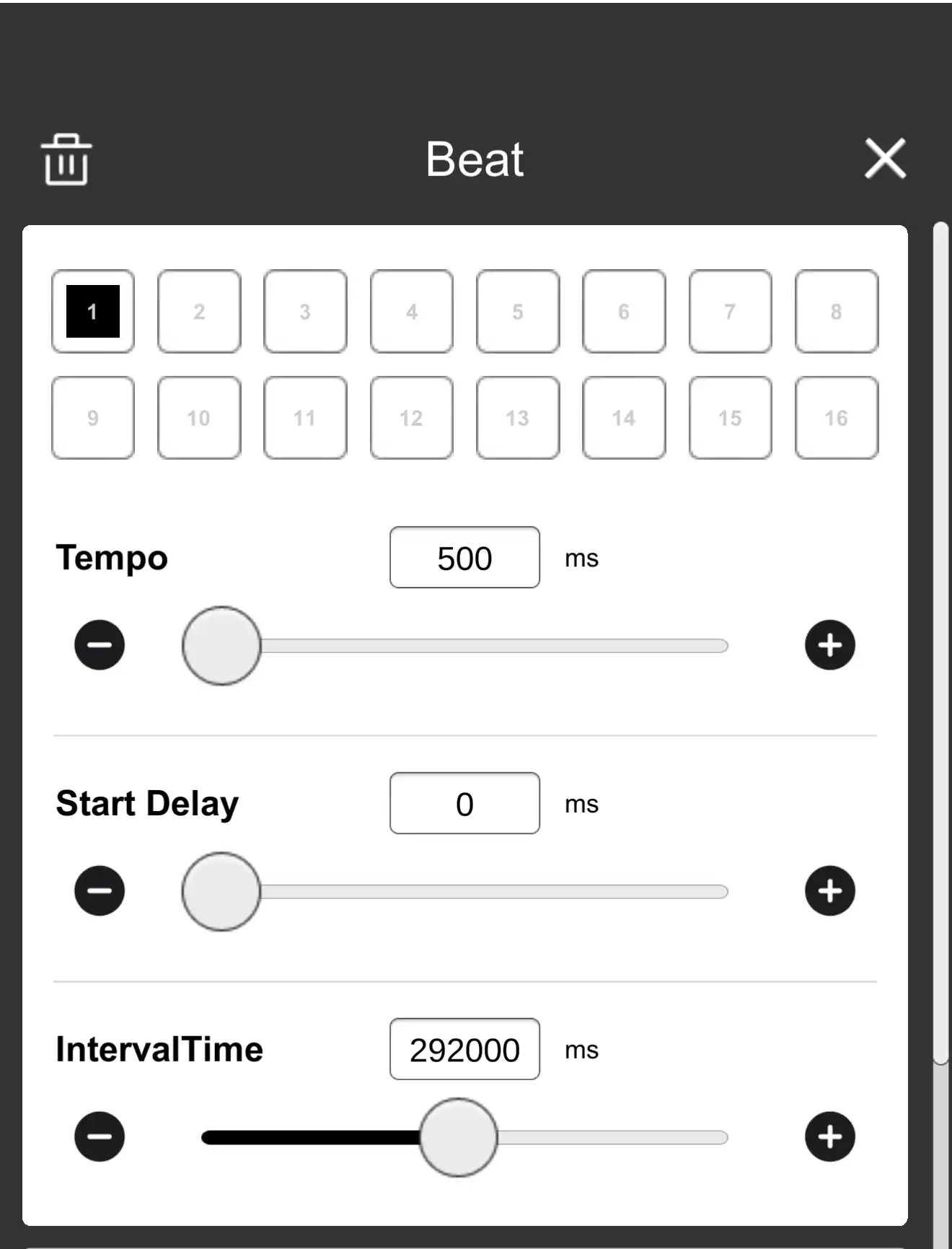
Tempo 500 ms
Interval 292,000 ms

Calculation: 500 × 16 + 292,000 = 300,000ms = 5 minutes

Setup steps

1Open the Beat sound source settings panel

On the Create Set screen, tap the Beat sound source to open its settings panel.

Beat sound source settings panel

Beat Sound Source Settings Panel

2Set only step 1 to ON in the step sequencer

In the step sequencer at the top of the Beat settings panel (buttons 1–16), set only “1” to black (ON) and set buttons 2–16 to white (OFF).

Why only step 1?

The step sequencer forms a 16-step cycle. The number of ON steps determines how many times the beat plays within one cycle.

  • If multiple steps are ON, the beat will play multiple times per cycle.
  • If only step 1 is ON, the beat plays once per cycle.
  • Therefore, if you set the cycle length to exactly 5 minutes, the beat will occur once every 5 minutes.

How to: Tap each button to toggle ON/OFF. If any button other than 1 is ON, tap it to turn it OFF.

3Set Tempo to 500 ms

Why 500 ms?

① What is Tempo?

Tempo is the value that determines how many milliseconds each step advances. With Tempo = 500 ms, the sequencer advances to the next step every 0.5 seconds.

② Why × 16?

There are 16 steps in the step sequencer. The time to complete all steps is Tempo × 16.

0.5s × 16 steps = 8 seconds (= 8,000 ms)

With Tempo = 500 ms, running through all 16 steps takes about 8 seconds. Since only step 1 is ON, the beat plays only at the first moment within those 8 seconds.

③ Why 500 ms is appropriate

From 5 minutes = 300,000 ms, subtract the sequencer play time (8,000 ms). The remainder becomes the Interval.

300,000 ms − 8,000 ms = 292,000 ms (set in the next step)

  • Tempo = 500 ms keeps the sequencer portion short (8 seconds), leaving most of the 5 minutes as wait time.
  • 292,000 ms is within the Interval upper limit (999,000 ms), so it can be set safely.

How to: Tap the Tempo display to enter the number, or adjust the slider to set it to 500.

4Set IntervalTime to 292,000 ms

Set the IntervalTime value to 292000 (ms).

Why 292,000 ms?

IntervalTime is the wait time between the end of step 16 and the start of step 1.

One cycle time = sequencer play time + IntervalTime. To make it 5 minutes (300,000 ms):

300,000 − (500 × 16) = 300,000 − 8,000 = 292,000 ms

  • After the Tempo portion (500 ms × 16 = 8,000 ms)
  • Wait 292,000 ms before the next cycle starts
  • Total: 8,000 + 292,000 = 300,000 ms = exactly 5 minutes

For detailed descriptions of Beat parameters, see How to use → 4. Beat Sound Source Setting.

5Play and confirm the 5-minute vibration

Close the Beat settings panel and tap the Play/Stop button (▶) on the Create Set screen.

When playback starts, the first beat plays immediately, then the next beat occurs after approximately 5 minutes.

Checkpoints

  • The initial beat plays (step 1 ON)
  • About 8 seconds of sequencer time passes (steps 2–16 advancing while OFF)
  • Interval of 292,000 ms (~4 minutes 52 seconds) elapses
  • Next beat plays → total 5-minute cycle

If iPhone Auto-Lock is enabled, background playback may stop. We recommend setting Settings → Display & Brightness → Auto-Lock → Never.

Customize the interval

To choose an interval other than 5 minutes, calculate the Interval value using the formula below.

Formula

IntervalTime (ms) = Target interval (ms) − ( Tempo × 16 )

If you keep Tempo at 500 ms, subtract 8,000 ms (500 × 16) from your target interval to get the IntervalTime value.

Target interval Target (ms) Interval (ms) Within limit?
3 minutes 180,000 172,000
5 minutes (this tutorial) 300,000 292,000
10 minutes 600,000 592,000
15 minutes 900,000 892,000

Tutorial 2: Play a tone every 5 minutes

This tutorial explains how to use only a Tone sound source to play a short sine wave every five minutes.

Example values used in this tutorial

Parameter Value Notes
Carrier signal 440 Hz (example) Pitch of the tone. Lowering the value makes the tone lower.
Modulator 0 Hz No modulation = pure sine wave
Overtones All OFF No harmonics = pure sine wave
Sequence ON (recommended) Required for interval control
Line 1 On / 1000 ms (example) Play tone for 1 second (adjustable)
Line 2 Off / 299000 ms 299 seconds silence (= 5 minutes − 1 second)

Calculation: Line 1 time + Line 2 time = 300,000 ms = 5 minutes

Setup steps

1Open the Tone sound source settings panel

On the Create Set screen, tap the Tone sound source to open its settings panel.

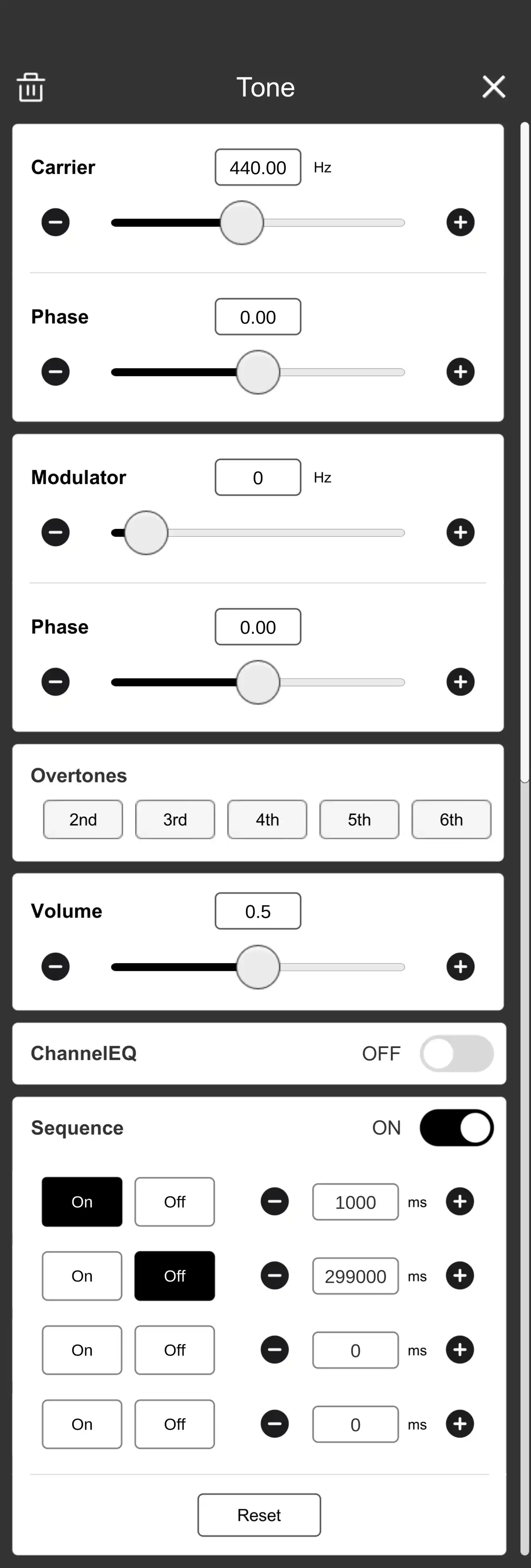
Tone sound source settings panel

Tone Sound Source Settings Panel

2Set Carrier signal to 440 Hz

Set the carrier signal frequency to 440 Hz.

3Set Modulator to 0

Set the modulator to 0.

4Turn all Overtones OFF

Set all overtones to Off (no harmonics).

5Turn Sequence ON

Set Sequence line 1 to On, time 1000.

Set Sequence line 2 to Off, time 299000.

Set lines 3 and 4 to Off, time 0.

If iPhone Auto-Lock is enabled, background playback may stop. We recommend setting Settings → Display & Brightness → Auto-Lock → Never.